
Blender
Download Blender



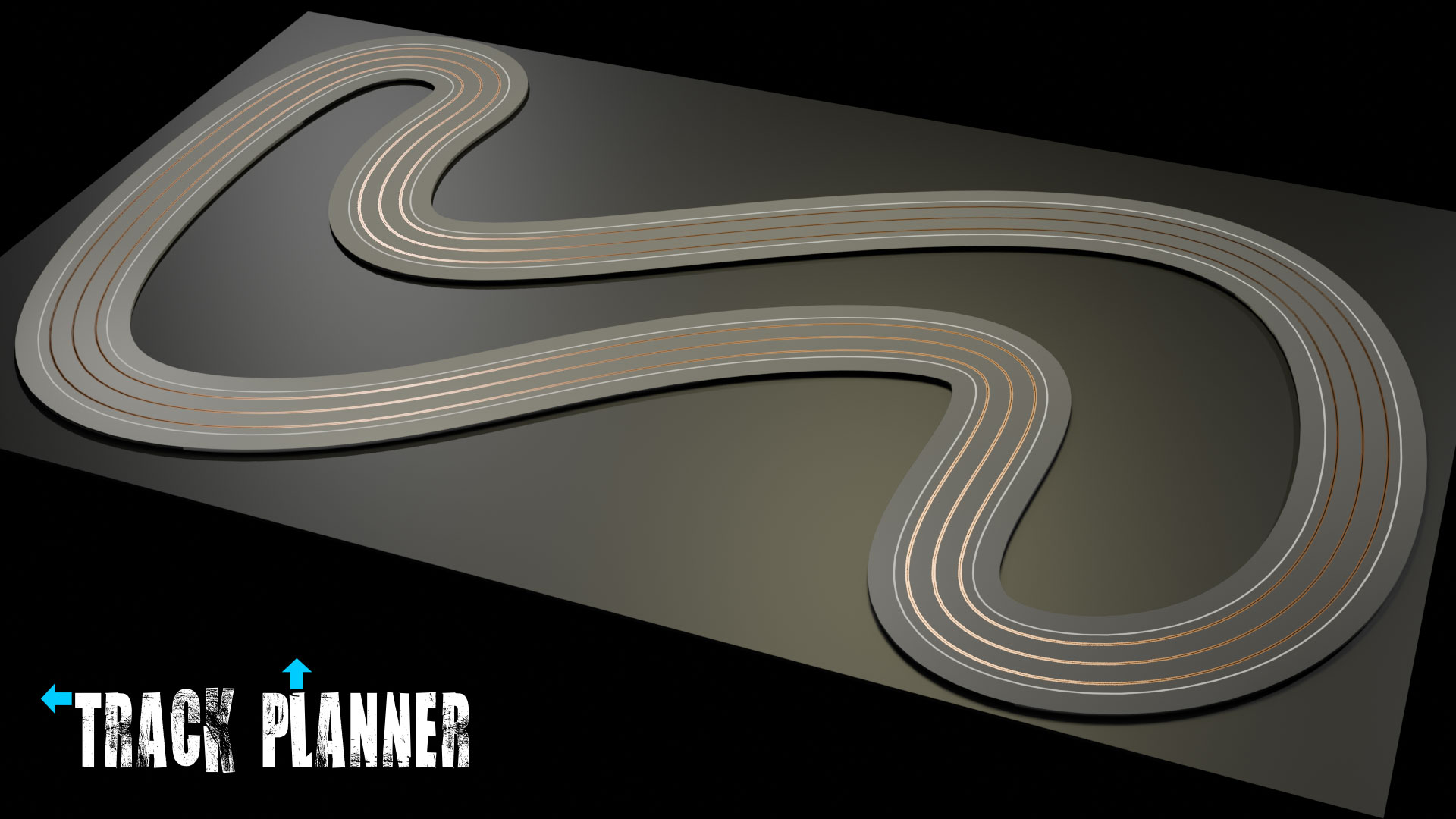
Track Planner is an easy and accurate way to design, plan and visualise a routed or custom built slot track.
In fact it's so simple that you could be producing custom, pro-quality designs in just a matter of minutes!
It is also totally free.
Blender is a fully featured, cross platform, 3d software. Download and install the software on your desktop or laptop. It is available for Windows, MacOS, and Linux, and it's free.
If you're already a Blender user, then it may be best to make sure you are using version 4.5 or later, as we can't guarantee Track Planner will work in older versions.
Download Track Planner and open the file in Blender.
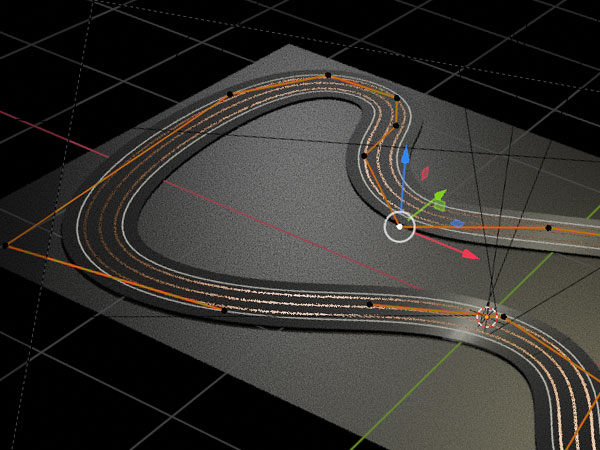
Once you've opened the Track Planner file, you should see a represention of a two lane routed slot track in grey, overlaid with orange lines, and black dots. Click on one of those black dots and move it using the tool, which should already be selected.


That's how simple and quick it is to edit the design of your track, just move the black dots. The track will move with the dots, but the track width and all lane widths will remain consistent.
But that is just the start, and there is much more to come over the following pages.
Of course you'll want to know how to make your track the right size for your space, you might want three lanes, or four, or more, and you'll certainly want to know how to make pro-level images to show off your design. We've got all that and more covered over next few pages.
Download Blender

Download Track Planner

Designing your track

Viewport navigation
Final steps

High quality images
Development & expansion
Manual