


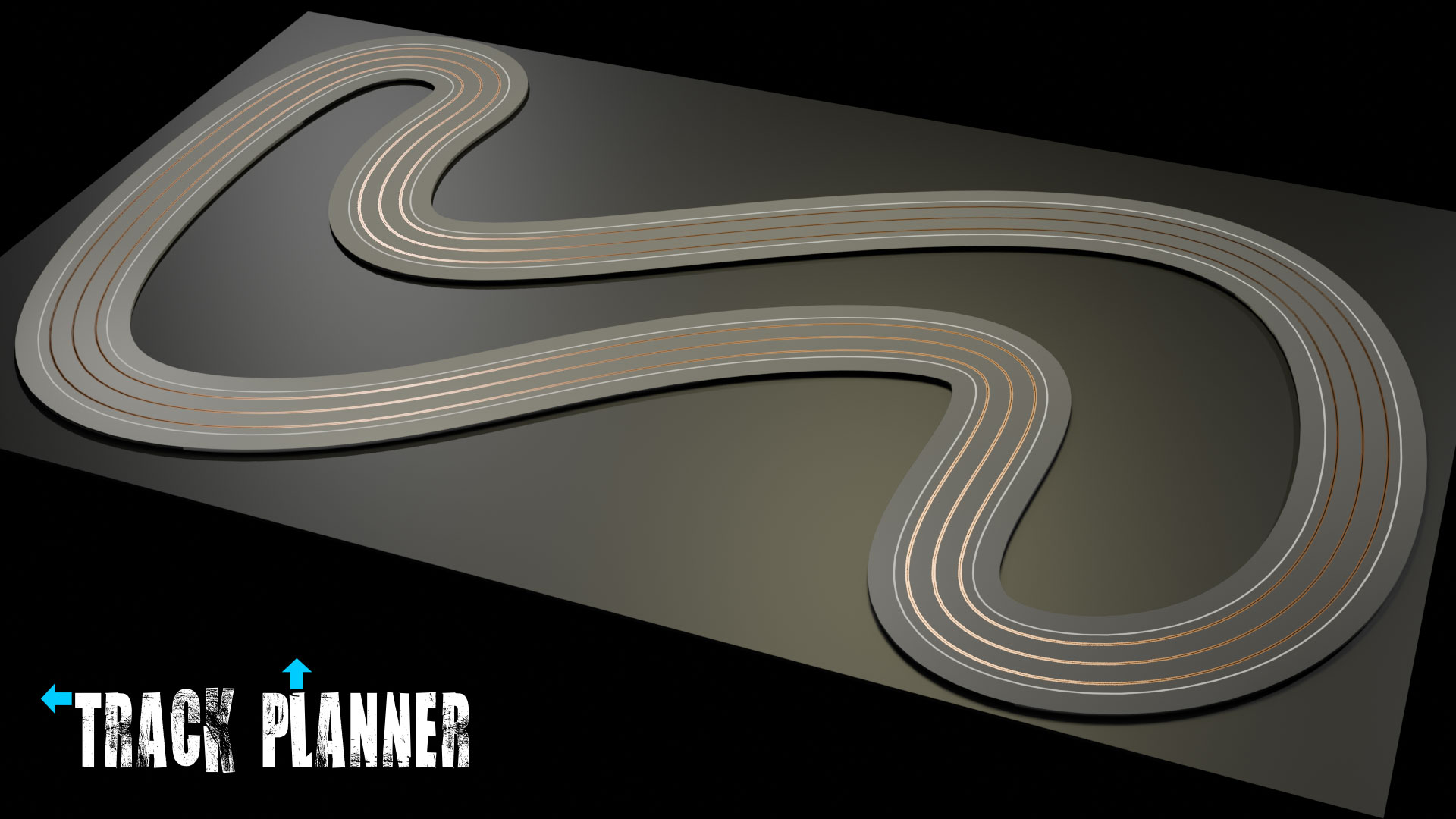
Finishing
In this section we'll deal with finishing your track.
This will involve getting rid of gaps and overlaps, as well as applying modifiers. Finishing your track is a little more complicated than starting it, but we'll work through it.
Closing Gaps
The first step is part of the finishing process, but may also need to be completed much earlier in the process. In fact it may need to be done several times as your design evolves.
If your track is larger than our original, then you might well have noticed a gap developing in the layout. If it's a large gap you may want to close it up to carry on working on the design. We will certainly need to close the gap before rendering.
- Make sure you are in (dropdown top left).
- Find and select your track in the . Not the , but the Track itself, for instance.
- Down below the you will find the area. With your track selected, click on the icon, which is a blue spanner symbol.
- The first modifier is an which duplicates a tiny piece of track many times over until it fills the layout, or used to.
- To close the gap in your track, you'll need to increase the of the array by typing in a larger number, or by using the arrows which appear on hover until the gap is closed.
Eliminating Overlaps
If your track is smaller than the default track, or if you've closed a gap using the method above, then you will have ended up with an overlap.
It may not be noticeable and it won't be a problem whilst editing your track, but it will create a messy 3D model, and it can cause problems when it comes to rendering.
We'll need to tidy it up a little, and get the two ends to meet up neatly, and accurately. This should be a one-off operation which you only need to do once you're completely happy with your track.
- Using the method above, reduce the of the modifier until you have just a small gap.
- With your track still selected, open the and fine tune the the scale along the
- To be as accurate as possible you'll want to zoom in close on that gap.
- You may also have to work to several decimal places on the scale of the , where you'll probably have to fiddle about typing in numbers until you work towards the two faces just touching each other.
Apply Modifiers
There is just one last operation we need to complete on your track.
It's a fairly simple operation, but it is destructive in so much as you will no longer be able to edit your track.
- You should make a copy of your track, before you continue, so that you have an your original, which we can go back to edit, and a permanent copy which we can render. Select your track and go to > . Without moving your mouse, click on your keyboard to prevent the track from moving.
- Now might also be a good time to rename your track. Just double click on the copy in the and type in a new name.
- Finally, with the copied track selected, go to properties and both the and . To do this simply click on the downward arrow to the right of the name of each modifier, and choose from the dropdown. Make sure to hide the original track before rendering.