Timing Options
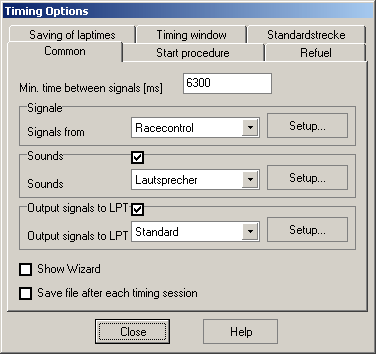
This dialog contains all options for timing and lap counting.
Common
Min. time between signals (ms)
Minimum time that must elapse between to signals on the same sensor. This should be set just below the expected lap record on the current track. The option´s use is to avoid unwanted signals due to sliding cars etc.
Signals from
The following timing triggers are supported. The configuration dialog can be started by clicking the “Setup...” button.
RacecontrolC6N.HA: Signals are sent through the Racecontrol-Sensorbox. Find general information about the sensorbox at www.racecontrol.com . Signals for split times and the refuel functionality may be sent through the sensorbox or custom built circuits (see ww.badenslot.de for details).
Random1Y7EZ0E: Signals are triggered by SlotMan´s random generator. Not all timing functions are supported in this mode.
Sounds
You can define sounds for the varying events during a timing session. In this dialog the current sound setup is chosen, the configuration itself is done in a seperate dialogNNGHSR
Output Signals to LPT
Here you can choose the configuration for signal output to the PC´s Parallel ports. The configuration5W64D9 can be opened through the Setup-button
Save file after each timing session
If this option is turned on, the file slotman.dat is saved after each timing session (when the timing window is being closed).
Show Wizard
If this option is checked, a wizard is displayed before each timing sessions to allow input of drivers and so on. If you feel comfortable with the software, turn this off for more options to control the timing.
Start procedure
This is the start procedure:
A message “Ready ?” appears and after that the starting lights are turned on. After all lights have been turned off at once, the race is started. This is a start procedure similar to Formula One but the number of lights used can be preset in this dialog.
The options in this dialog are:
• Delay before start: Time in seconds to elapse between the Ready-Message and the start of the procedure. Is the message to be confirmed by a driver, there is enough time to get ready before the starting procedure begins.
• Lights ON: Time between starting lights are turned
• Lights OFF Min/Max: Minimum and maximum time the lights are on before they´re turned off and the race starts. The actual time is somewhere in between and random.
The lights are displayed on screen but whoever would like to build his own starting lights, may control them via the parallel port. The images for the starting light´s monitor display may be altered. The images to use must be named "SLOn.jpg' resp. "SLOff.jpg", must be stored in the Slotman-Folder and must be of the same resolution.
In addition it is possible to use the remaining output pins of the parallel port for further signals. These can be configured and be used for track power switching etc. These configuration can be done here5W64D9.
Jump start activity
Jump starts are detected and may be handled as follows:
None
The jump start is not handled. Of course the signal doesn´t count, so the driver starts the race almost one lap down.
Disqualification
The driver is disqualified. Other signals on this lane are not registered.
Signal on parallel port
Signals from this lane are not registered for the given time. In addition there´s a signal output on the parallel port for the given time. The signal may be configured in the dialog for output signal setup5W64D9.
Refuel
During the race the fuel load for each lane is displayed as a gauge if it´s display is turned on in the timing window configuration. If it is not displayed, the refuel functions are disabled automatically.
The refuel functionality is as follows: Each car starts with a defined amount of fuel. Each lap uses a part of it – depending on the lap time. The faster, the larger the consumption. Refuelling takes place while stopping the car on the sensor. If a car is running out of fuel, this can be handled with penalty times or disqualification.
If sensors 3 & 4 are used for refuelling on 2-lane layouts, only these sensors (and not sensors 1 & 2) can be used for refuelling.
Fuel capacity
This is the maximum fuel capacity. Each car starts with this amount of fuel.
Consumption at default laptime
This is the fuel used for one lap that has been timed at the default lap time. This lap time may be configured. If it isn´t entered, it corresponds to the current record on this track BEFORE this timing session has been started. In case there is no saved lap time for the current track and no lap time is entered, the default lap time is 10 seconds.
Example: The default lap time (track record) is 5 seconds. If the fuel consumption is configured to be 10 litres, the fuel consumption of a fast lap at 5 seconds is 10 litres. If the lap would be timed at 2,5 Seconds, the consumption for this lap would be 20 litres. If the lap would be very slow (at 10 seconds), the fuel consumption for this lap would be 5 litres.
Delay before refuelling starts [s]
Refuelling is done when the car is standing on the sensor. This option configures how long the car must be parking on the sensor before refuelling starts.
Refuel speed
This configures at what rate the car is being refuelled. The car is refuelled as long as it is parking on the sensor or the maximum capacity is reached.
Out-of-fuel activity
How to handle cars that are out of fuel:
Disqualification
The car is disqualified, no more laps are counted on the corresponding lane. The total time for this car is set to about 600 hours which is the maximum time allowed in SlotMan.
Penalty time
The set number of seconds are added to the last lap time. The timing dialog shows the “real” lap time though(if this display is turned on). The penalty time is taken into account for the list of fastest laps and the lap table.
The race is continued normally, after the next lap has been completed, another penalty time might be added.
Signal on parallel port
In addition there´s a signal output on the parallel port for the given time. The signal may be configured in the dialog for output signal setup5W64D9. This could trigger a switch to turn off track power for this lane for the given amount of time. This option may be unavailable if LPT-output is turned off on the “Common”-tab.
Saving of lap times
When the timing session has ended, the fastest laps are being archived. The following options can be set:
Minimum laps for storing of averages
If at least this number of laps have been completed on a lane, the average time for these laps are stored. The fastest lap times can the be distinguished from the best average times.
Save all lap times
If this option is checked, all fastest lap times are being saved. If it is turned off, only the number of laps are saved that are defined in the following option. If the number of laps is restricted, the saving of lap times is done a little faster but it is unsure if all fastest lap times are saved.
This option should be turned off only, if you´re using a very slow computer. Turn it on whenever possible !
Total number of laps to save
This is the number of fastest laps that have to be saved for each track. If the maximum number has been reached, some slower laps are deleted. The smaller this number, the faster the saving of lap times is done. Apart from that, the file slotman.dat doesn´t get as large as it would if this option was set to a very large number. The maximum number allowed is 1500.
Saving of lap times
With this option you can configure if the fastest lap times should be saved after each timing session. This can be set on (always), off (never) or SlotMan will ask you whether to save or not after each session.
Timing window
The timing window displays varying data. The type of data (last lap time, best lap time etc.) is defined in the dialog Timing window layout5D3UIV.
For time limits display every xxx´th second
When using a time limit in the timing session, the time remaining is displayed in the upper part of the window. This option defines how often this display is updated.
Show lap table after each session ?
Use this option to decide if the lap table1K9GX0R is to be displayed after each timed run. The table can be used to alter the timed laps before they are used by the program to calculate the results and are entered into the table of the fastest laps.
Default Track
Number of Lanes
Here the number of lanes of the default track is input. This track may not be edited by the Track Editor18QL_XT and is thought to be used only for permanent layouts. The values are only used for the calculation of average speed and don´t have to be altered if other track layouts are used for timing.
Track Length
This is the group where the lane-lengths of the Default-track may be input.
Use Default-Track
This should not be checked if the default track is not going to be used for timing so turn this option on only if you´re racing on a permanent layout.
Scale
Used only for speed calculations on the default track.
Also use scale for other tracks
If this option checked, the given scale is used for calculating speeds in races on other tracks also. This option normally should not be checked. So the scale of the track system used for the track is used. This scale can be altered in the configuration of the track systems.
Created with the Personal Edition of HelpNDoc: Full-featured multi-format Help generator