Timing Window Layout
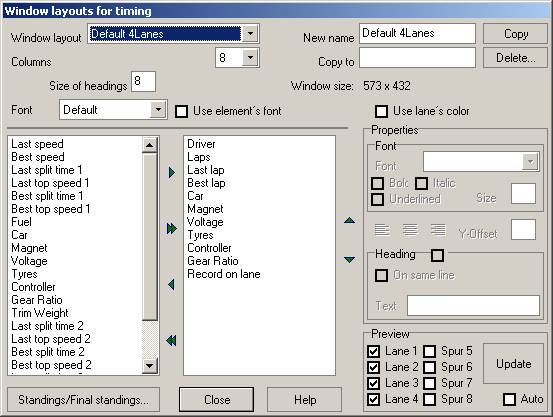
his dialog defines which elements (last lap, fastest lap, driver etc.) should be displayed in the timing window. When starting this editor the timing window is started as well to be able to monitor changes made to configuration. There are 5 predefined configurations. These may be altered, additional configurations may be added.
The configuration has it´s limits, that means that all configured elements are ordered vertically.
The size of the timing window can be changed while configuring, is saved along with the configuration and may be different for each configuration. This size is being restored when the timing window options for the next timing session.
Window layout
Here you can choose the current layout.
New Name
Enter a new name here in case you want to rename the configuration.
Columns
This is the number of columns that are used for the display of the lane-specific information. Usefull settings depend on the size of the timing window, the pieces of information to display and their font size.
Copy to
The layout can be copied to another one with another name (button “copy”). The name must be unique.
Size of headings
This is the font size for headings. This parameter is only used for headings that are not displayed on the same line as the data itself. For more information regarding headings, see below.
Window size
This is the size of the timing window. This is changed directly when the timing window is resized.
Font
This is the font used for the headings.
Use element´s font
If this option is switched on, the heading´s font is derived from the font used for the data itself. If it´s switched off, the font chosen in the option before is used.
Use lane´s colour
If this option is turned on, the data is displayed in the lane´s colour. In this case, the background of the timing window is set to black.
Delete
This deletes the current layout. At least one configuration must remain.
Unused elements (left list)
This is the list of unused elements, that means these elements won´t be displayed in the timing window.
Used elements (right list)
This is the list of used elements. Elements may be added or removed using the two buttons between the lists. The buttons “+” and “-“ are used to sort the elements.
Properties
These options are used for configuring the display of the currently selected element in the right list.
Font
This is the font and it´s style to be used.
Size
The element´s size (Font size if the element is a text, for the “Fuel”-element this is the height of the gauge). Note that not every font size can be used. Depending on the font, some font sizes may lead to unsightly results.
Alignment
Used to configure left/right/center-aligned text.
Y-Offset
Vertical offset of this element (in addition to the offset that results from the order of the elements). This option can be used to create a “paragraph” to enhance the display.
Heading
If this option is checked, a heading for this element is added. The heading can be typed into the “Text-field (e.g. “Last Lap”).
If the option “On same lane” is turned on, the heading is displayed directly before the actual data, otherwise it is displayed above the data. A heading for the element ”Fuel” can only be displayed above the gauge.
Preview
Lane 1-8
Check or uncheck these options to turn preview for each lane on and off. This has no influence on the lanes displayed in the actual timing session.
Update
Redraws the timing window. When configuring for the first time, it is recommended to turn on the “Auto” – option to redraw the timing window automatically each time the configuration is changed. This takes some time (especially on slow computers) but makes it easier to understand the way the configuration works.
(Final) standings
This opens another dialog which can be used to configure the (final) standings window. The configuration is done just as for the main window. Please note that this additional window always uses the lane´s colours on a black background.
Created with the Personal Edition of HelpNDoc: Easily create CHM Help documents