Lap Tables
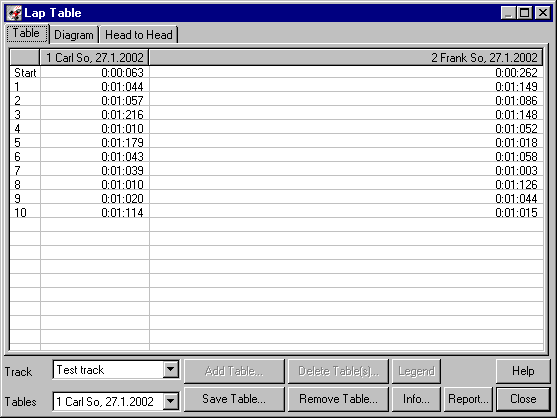
Use this dialog to analyse the lap tables of the last timing session together with the lap tables previously saved for the current track. A lap table consists of information about the lane´s configuration and all lap times archived on this lane. Unlike the table of the fastest lap times this table contains all lap times (including start time). It is recommended though that (especially when using PCs with little memory) not too many lap tables are saved.
The dialog always uses the entire screen resolution.
There are different views for analysing the data. These views may be switches by selecting the tab sheets on the upper border of the dialog.
Table
The lap times are displayed in a table. The lap number is displayed on the left, lap 0 contains the start time.
Diagram
The lap times are displayed as a line. The x-axis displays the laps, the y-axis displays time.
Head to Head
Displays the gap to the leader. This diagram is available only with at least to lap tables and is especially useful for displaying the race in progress.
The following functions are available:
Track
Lap tables are saved for a specific track. It is not possible (and not useful) to compare lap tables from different tracks.
Tables
This list contains all displayed lap tables. A maximum of 10 tables may be compared at a time. Selecting a table here changes it´s display in a diagram. Apart from that the “Remove Table” function uses the currently selected table.
Save Table...
Opens another dialog where the previously unsaved lap tables can be saved. All tables selected by a checked rectangle are saved. As stated before, only previously unsaved tables are available for saving. So tables cannot be saved twice accidently. If the diagram or head to head graphics are displayed the table is assigned another colour.
Delete Table...
This deletes one or more saved tables.
Add Table...
This function adds one or more previously saved (or available) tables to the tables displayed. Using this function you can easily compare lap tables from a current timing session with those saved from previous sessions.
Remove Table...
Removes the currently selected table (lower left). If this table hasn´t been saved before, there´s another check since after removing the table it cannot be viewed anymore.
Info...
Opens a dialog displaying additional information about the currently selected table. The table is selected from the list in the upper part of the dialog.
Close
Closes the dialog. Tables are still available even if not saved. The dialog may be reopened and the tables may be viewed afterwards.
Unsaved tables only get lost when closing the timing session window.
Legend
If the diagram or head to head graphics are displayed, this functions displays a legend window to easily match colours to lap tables.
Report
Opens the ReportOEEVSP dialog to output reports to the printer or a file.
Created with the Personal Edition of HelpNDoc: Free EPub and documentation generator