Print Layout

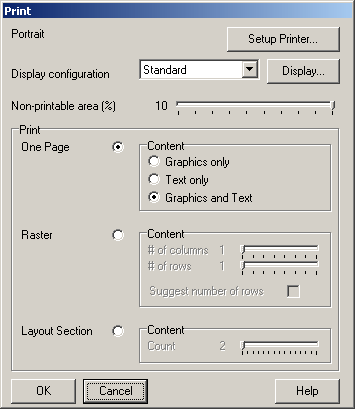
Use this function to print track layouts. The display configuration to be used can be chosen before printing. Pressing the button “Display” opens the display configuration dialog1MO0O99.
The left upper area provides information about the currently configured page aspect (portrait or landscape). The button on the right is used for calling the printer´s driver dialog to configure the printer.
Since the various printers use differing non-printable areas, this parameter can also be set up (as percent of the paper size). This configuration is saved for later used.
There are the following options available for printing:
• One Page: The layout, used sections ore both can be printed on a single page. If the aspect configured is portrait, this information is printed one above the other, otherwise it is printed side by side.
• Raster: The layout is divided into the configured columns and rows. Each “cell” is printed onto one page. If the option “Suggest number of rows” is checked, the number of rows is calculated automatically. If the option is not checked, unprinted pages may occur. The pages are numbered in the upper left area. The columns are named alphabetically from left to right, the rows are numbered from top to bottom.
• Layout Section: The layout is divided into the configured number of sections. Each section is printed onto one page. The part of the layout that does not belong to the current section is not displayed. If for example there are 4 persons involved in setting up a layout, this option can be used and configured to 4 sections. 4 pages are printed out showing each person which part of the layout to build. The four parts only have to be connected at the end. The pages are numbered. Note that the sections displayed are not to scale. Each section is printed to best fit the paper size.
Printing is started by clicking “OK”. Click “Cancel” to close the dialog without printing.
Created with the Personal Edition of HelpNDoc: What is a Help Authoring tool?