Manage Tracks
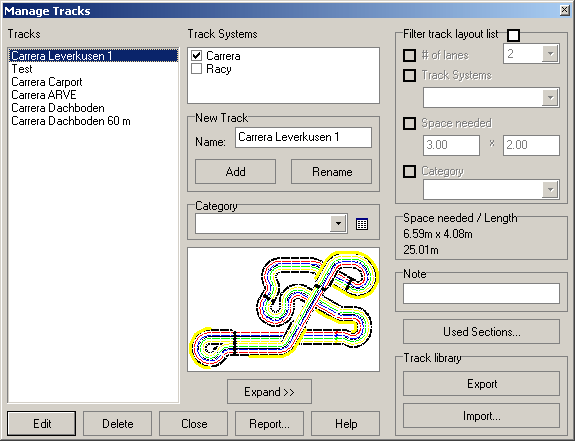
This dialog is used for creating, editing and deleting track layouts.
A preview of the currently selected track (list on the left side) is displayed in case a treck is selected from the list.
Track Systems
This is a list of al configured track systems. Before creating a new track all track systems to be used for the new layout have to be selected from this list. It is possible to create layouts from more than one track system if there are adapter sections defined in at least one system that fit multiple track systems.
Add
Adds a new layout using the name entered in the field on the upper right and edits the Track editor18QL_XT . If there´s already a track using this name, SlotMan displays an error message. Note that the name “Default” is reserved and may not be used.
Rename
To rename a track, select it from the list on the left, type in the new name and press the button.
Category
Tracks can be assigned to various categories and grouped. New categories can be added by pressing the button on the right side of the drop-down list.
Edit
Opens the Track editor18QL_XT displaying the currently selected layout.
Delete
Deletes the currently selected layout. This cannot be undone.
Close
Closes the dialog.
Report
Opens the ReportOEEVSP dialog to output reports to the printer or a file.
Expand/Collapse
This button expands the dialog and reveals some more options and functions on the right of the dialog. The dialog can be reset likewise.
Filter track layout list
The list of track layouts on the left may get quite long as more and more layouts are designed. Use this option to filter the list by various criteria. To use the filter mode, this option has to be checked.
The list may be filtered by the following criteria:
Number of lanes: Only layouts with the exactly same number of lanes are listed.
Track System: Only layouts with at least on track section from the given system are listed.
Required space: Only layouts that fit into the given space are listed.
Category: Only layouts that belong to the given category are listed.
Each filter to be used has to be activated by selecting the option on the left. All criteria work together, so only layouts are listed that correspond to each of the activated filters.
Please note that filtering the list is only possible using the expanded state of the dialog. If you collapse the dialog, the filter option is unchecked automatically.
Required space
Shows the space required for the layout currently selected in the list.
Note
Use this field to type in a note to the currently selected layout.
Used Sections
Opens the part matrix dialog, This dialog lists all sections used for each layout.
Export Track
Saves the currently selected layout to a separate file into slotman´s installation folder.
This function is only used for exchanging layouts with other slotman-users. You don´t need to save layouts for your own personal use since all layouts are saved to the file slotman.dat when leaving the program.
The exported track file does not contain any annotations or floorplans.
Load Track Library
Use this function to import a saved track library. For more information about track system independent track libraries see here11DXZMR.
If the used track system has been stored along with the layout, it is imported also if there´s no system present that matches the one used for the layout.
At first the file is specified and the tracks to import are selected. Is there already a track with the same name, the new layout has to be provided with a new name. Click on “Cancel” to skip the track.
Created with the Personal Edition of HelpNDoc: Easy to use tool to create HTML Help files and Help web sites